Email Organization Strategies: 4 Folder Systems and the Workflow That Sticks
If your inbox feels like a second job, you are not imagining it. The average office worker now receives around 120 emails a day and spends about 28% of the workweek reading and answering email, according to McKinsey research. That is more than a full day every week, and most of it is not action. It is sorting.
This guide covers the four folder systems worth knowing, the eight strategies that actually move the needle, and the daily rhythm that makes any system stick. We also call out when to stop using email for certain conversations. No amount of folders fixes a thread that should not be in email in the first place.
How much email is too much?
Email volume has crept up year after year, and the cost has crept up with it. Knowledge workers handle around 120 messages a day, with executives and account managers often pushing past 200. The result is what Cal Newport calls a workflow built on accumulation: every new message becomes a small obligation, and the pile only grows.
The real problem is not the volume. It is the constant context switching. Workers check email every six minutes on average, and each check pulls attention away from real work. Research by Gloria Mark and colleagues shows that frequent email use correlates with higher stress, lower task focus, and slower completion of meaningful work.
"Email is making us miserable. Humans are simply not wired for constant digital communication." - Cal Newport, Author of A World Without Email
The good news is that you can claw back that lost time without changing your job. Most people are losing it not because they get too much email, but because they lack a system. Once you have one folder structure you trust, a daily processing rhythm, and a few automation rules, the inbox stops running you. You start running it.
The four folder systems compared
Most articles push one folder system as the answer. The honest version is that four systems work, each for a different kind of person and a different kind of work. Pick the one that matches how you already think.
| System | Folders you create | Best for | Skip if |
|---|---|---|---|
| Four-Folder | Inbox, Action, Follow-up, Archive | Most knowledge workers with a steady, predictable workload | You juggle eight or more active client projects with separate threads |
| GTD | Inbox, @Action, @Waiting, Reference | Heavy delegators and project managers tracking other people's replies | You handle most replies yourself in under two minutes |
| PARA-style | Projects, Areas, Resources, Archive | Researchers, writers, and anyone re-finding old emails often | Most of your email is action, not reference material |
| Project-Based | One folder per active client or project | Agencies, consultants, and account managers with discrete projects | Projects under two weeks long create churn faster than value |
The Four-Folder system is the simplest. Inbox is for what just arrived. Action is for what needs your reply. Follow-up is for what you sent and are waiting on. Archive is for everything else. Most knowledge workers do not need anything more complex than this.
The GTD setup, drawn from David Allen's Getting Things Done, splits Action into two: things you do (@Action) and things others owe you (@Waiting). It is built for people who delegate often or coordinate work across teams.
PARA (Projects, Areas, Resources, Archive), popularized by Tiago Forte, is built for reference. If you spend a lot of time re-finding old emails for context, PARA gives them a place to live where you can actually find them again.
Project-Based folders are agency life. One folder per active client or project, archived when the project ends. Clean for discrete work, messy when projects start blurring or running shorter than two weeks.
How to pick your folder system
Three questions get you to the right answer.
How many active workstreams do you juggle? One to two means Four-Folder is fine. Three to seven means GTD or PARA. Eight or more discrete clients usually means Project-Based.
Do you re-find old emails often? If yes, lean PARA or Project-Based. The folder hierarchy doubles as a reference library. If no, lean Four-Folder or GTD. Search will do the work, and a flat structure is faster to maintain.
How much of your work is waiting on other people? If a meaningful share of your day is "waiting for so-and-so to reply," GTD's @Waiting folder is the only setup that surfaces those threads before they fall through the cracks.
Whatever you pick, give it two weeks before deciding it is wrong. New systems feel awkward for the first 50 emails. After that, they either click or they do not.
Eight strategies that actually work
The folder structure is the skeleton. These eight strategies are the muscles. None of them are revolutionary on their own, but together they cut the time you spend on email by at least a third for most people who try them.
1. Set up filters before you set up folders
A folder you sort into manually is a folder you will eventually abandon. Filters do the sorting for you. Pick the three highest-volume sender types you get (newsletters, automated alerts, calendar invites) and write rules that move them straight into a labeled folder, marked as read.
You should never see a Mailchimp newsletter or a "build #4321 succeeded" alert in your main inbox. They are reference, not action, and you can scan them in batch when you choose.
2. Process email in two or three batches a day
The instinct to check email constantly is the single biggest productivity killer in modern work. Pick two or three windows: one mid-morning, one after lunch, one late afternoon. Outside those windows, close the inbox tab. Turn off notifications. The world will survive.
If your role genuinely requires faster response (sales, support, account management), shorten the windows but keep the structure. Three 30-minute blocks beats checking every six minutes for both responsiveness and focus.
3. Touch each email once
The five-action rule: when you open an email, you immediately decide one of these. Reply now (if it takes under two minutes). Delegate (forward with a clear ask). Defer (move to a folder with a deadline on your calendar). Delete. Archive (no action needed, may need to find later). For the deferred items, an Eisenhower-style sort on urgency and importance helps you order the calendar blocks.
The mistake people make is opening, reading, then closing the email and leaving it in the inbox. Now you have to read it again. You have done the same work twice.
"Your mind is for having ideas, not holding them." - David Allen, Author of Getting Things Done
4. Unsubscribe aggressively
If you have opened a newsletter twice in six months and not acted on it, hit unsubscribe. Two seconds now saves the same two seconds every week for the next two years. Do it on the spot, not later. Later does not happen.
For senders that ignore unsubscribe (or send from rotating addresses), use a filter that auto-archives or deletes them. The filter wins where the unsubscribe link does not.
5. Keep templates for repeat replies
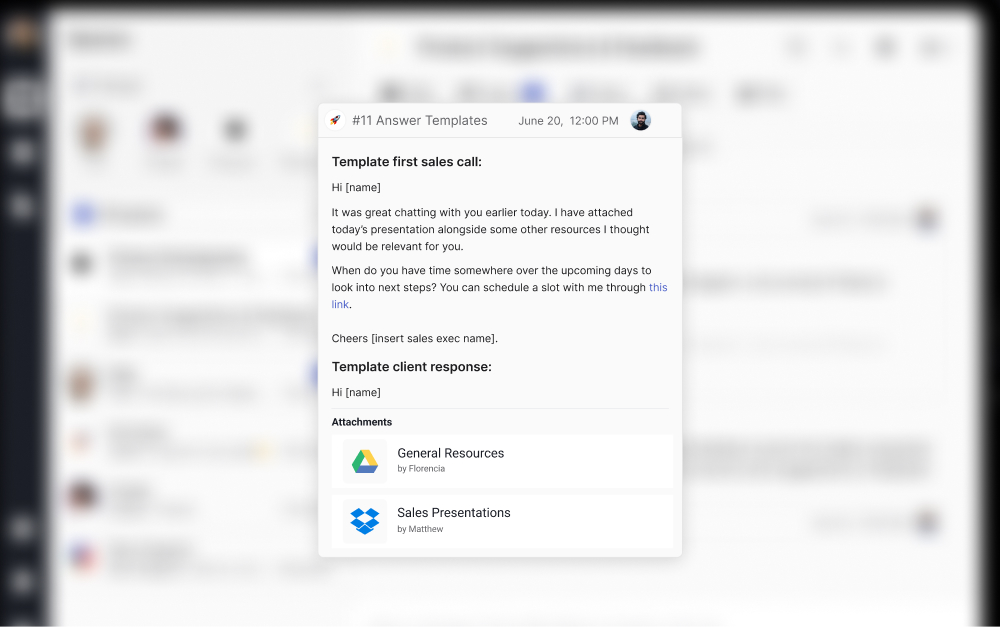
Look at your sent folder for a week. Most of you are writing the same five or six emails over and over. Project kickoff replies. Status updates. Onboarding intros. "Sorry I missed your note, here is what you need." Each of these can be a template you adapt in 30 seconds instead of writing from scratch.
6. Schedule reply windows on your calendar
If an email needs more than two minutes to handle, do not handle it in the moment. Move it to a Defer folder and put a calendar block on a specific day to deal with it. The block is the commitment. Without one, the deferred email becomes a permanent shelf-sitter.
This is also how you stop email from leaking into evenings. If a reply needs an hour of thinking, that hour belongs in a calendar block, not a 9pm guilt session. Combine this with a clear daily priority list and email stops competing with real work for the same minutes.
7. Use search, not folder hierarchy, to find things
The reason your folder system breaks down is that you are trying to make it function as a search index. It cannot. Search engines (Gmail, Outlook, anything modern) are far better at finding old emails than your memory of which folder you put them in.
The folder system exists to manage what is active. Search finds what is archived. Use the right tool for each job, and you can keep the folder structure flat.
8. Move ongoing conversations off email
The fastest way to reduce email volume is to stop having conversations in email that should not be there. Long back-and-forth threads with the same teammate, weekly client check-ins, cross-team coordination, file sharing with feedback loops. None of these belong in an inbox. We come back to this in the closing section.
The daily inbox-zero workflow
A folder system without a habit is just a shelf. Here is the four-step rhythm that makes any system actually work.
Step 1. Open the inbox at a set time. Pick two or three windows in your day. Late morning, after lunch, mid-afternoon is a common pattern. Open the tab, work through it, close the tab. The window is finite.
Step 2. Process top-down, one email at a time. Do not skim. Open the first unread email. Decide one of the five actions: reply, delegate, defer, delete, archive. Execute. Move to the next. The whole point is not to leave decisions on the table.
Step 3. Two-minute rule for replies. If a reply takes under two minutes, write it now. If it takes more, move the email to your Action or Defer folder and put a calendar block on it. Do not pretend you will write it after lunch. Block the time.
Step 4. End the session at zero (or close to it). The goal is not literal inbox zero every day. The goal is cognitive zero: at the end of the session, every email in your inbox has either been processed or scheduled. Nothing is sitting there as an open decision.
"It is not about how many emails you have. It is about how much of your own brain is in that inbox." - Merlin Mann, Originator of Inbox Zero
Treat the rhythm as the actual product, not the folder system. People who keep simple folders and process daily beat people who build elegant taxonomies and check whenever a notification fires. The system is downstream of the habit.
Common mistakes to avoid
Most email systems do not fail because the folders are wrong. They fail because of one of these five patterns. If you recognize yourself in any of them, fix that one thing first before changing anything else.
- Building the perfect folder tree before processing email Spending three hours nesting folders by client, year, and project, then never opening the inbox to actually use them. Most people need four to six folders, not forty. Start small. Add folders only when the same kind of email lands twice in a row with nowhere to go.
- No daily processing rhythm A folder system without a habit is just shelves to ignore. Pick two or three windows a day to triage email. An empty system that gets touched once a week is worse than a messy one that gets touched daily, because the backlog rebuilds the moment you fall behind.
- Archiving as procrastination Moving an email to a Follow-up folder is not the same as deciding what to do with it. The folder becomes the new inbox: another place to ignore. Decide on the spot. Reply, delegate, defer with a date, or delete. Touch each email once.
- Subscribing instead of unsubscribing Newsletters compound. If you opened it twice in six months and never acted on it, hit unsubscribe instead of deleting again next week. The two seconds you spend now save the same two seconds every week for the next two years.
- Using email as a chat tool Long back-and-forth threads with the same person on the same topic should not live in email. People answer late, miss context, and lose the thread. For ongoing conversations with a teammate or a client, switch to a chat tool with shared spaces. Reserve email for one-shot updates, broadcasts, and external strangers.
When to ditch email entirely
The hardest part of email organization is recognizing which conversations should not be in email at all. Email was built for one-shot, asynchronous, archival messages. It is bad at three things: ongoing back-and-forth, shared team context, and threads that track decisions or files alongside the conversation.
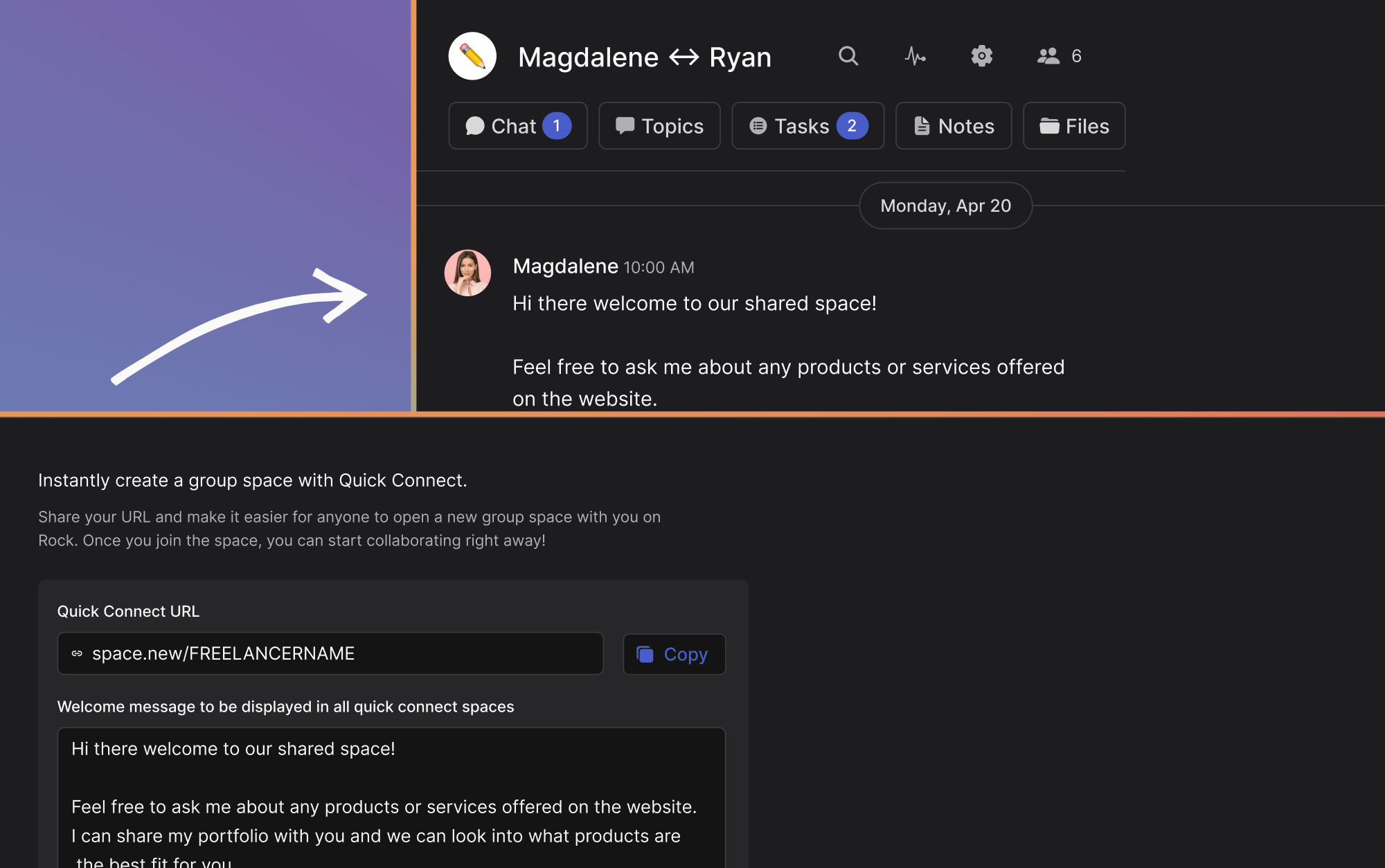
For client work, internal team discussion, and project coordination, a shared workspace beats email almost every time. Cross-org tools like Rock let you invite a client into a single space where chat, files, and tasks live together. The thread does not split across ten emails. The relevant document is not buried in someone's attachments. Decisions are visible to everyone in the space. Pair that with a clear communication strategy and most of what used to need email simply stops being email.
The simplest test: if you are about to send the same person their fifth email this week on the same topic, that thread does not belong in email. Move it.
Here is what it looks like in practice. Instead of a two-week email thread, the client lands in a space where the brief is pinned and the open questions are on a board. A quick chat reply replaces the next four emails. We use this internally at Rock for every client and partner conversation, and the volume reduction is the part people notice first.
Email is still useful, but it is one tool among several. Treat it that way and the inbox stops being a daily emergency. For more on which conversations belong where, see our notes on communicating with clients and running async work. The goal is not zero email. The goal is email in its right place: short, archival, and few.
If you spend more time reading email than doing the work behind it, the fix is rarely better folders. Rock combines chat, tasks, and notes in one workspace. One flat price, unlimited users. Get started for free.